Tune virtualization
Use this guide when the table already behaves correctly but starts to feel heavy once more rows or columns are on screen.
Virtualization is about render cost, not query semantics. It changes how much of the already-loaded table React mounts at once.
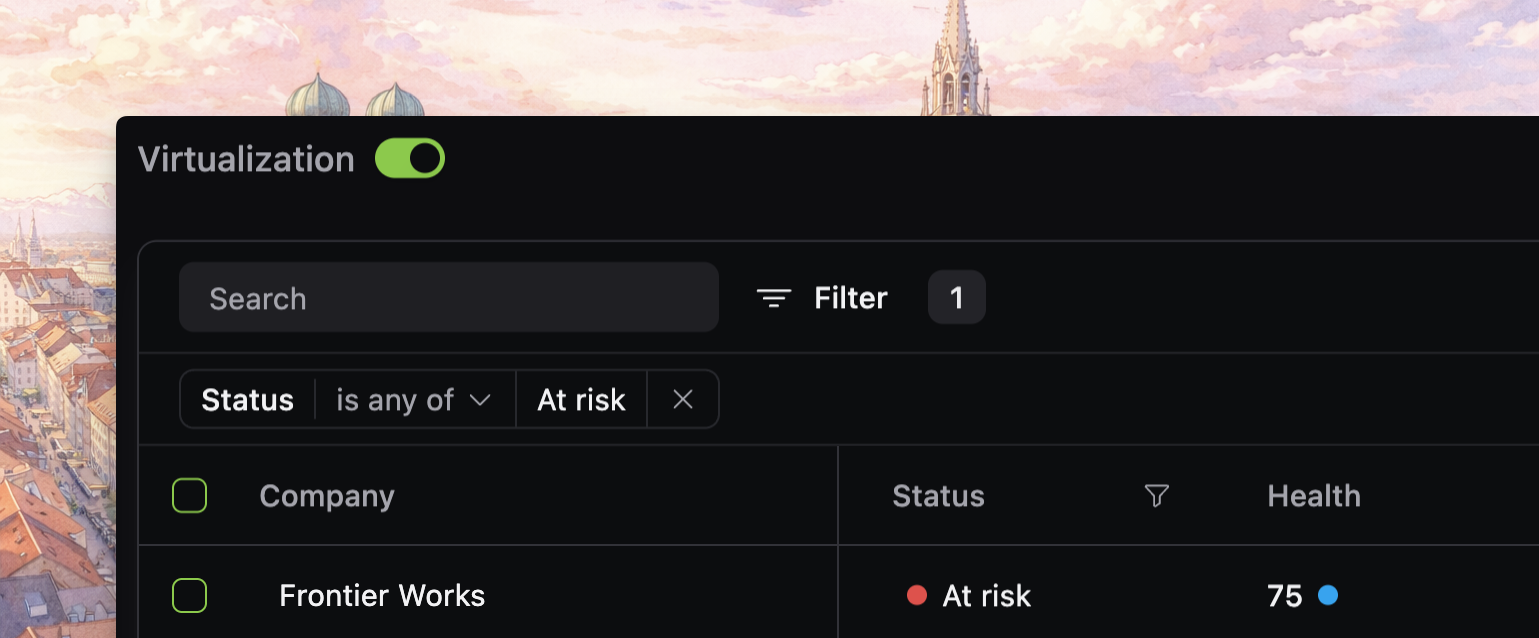
Full vs viewport rendering
Use virtualization.mode: "full" when the loaded dataset is bounded and mounting every loaded row is still cheap enough.
Use virtualization.mode: "viewport" when users scroll through enough loaded rows or visible columns that full mounting starts to hurt interaction quality.
<Datatable
  tableKey="customers"
  data={customers}
  columns={columns}
  getRowId={(row) => row.id}
  virtualization={{ mode: "viewport" }}
/>
Typical signals that viewport is the better fit:
- large local datasets
- wide tables with many visible columns
- dense product surfaces where people scroll constantly
- infinite online tables with big loaded windows
Rendering mode vs data mode
virtualization controls render cost, while local versus online mode controls data ownership.
- local versus online mode decides who owns filtering, sorting, pagination, and grouping
- virtualization decides how much of the loaded table is mounted in the DOM
That means online.mode: "infinite" and virtualization.mode: "viewport" often appear together, but they solve different problems.
If you are still deciding how rows should be fetched, go back to Choose a data mode.
Infinite-mode constraint
The current grid forces infinite online tables to render in viewport mode, even if you request full.
That is intentional. Infinite scrolling only stays practical when the loaded window is still rendered through the viewport engine.
So treat full as an option for:
- bounded local tables
- bounded pagination results
- debugging parity against viewport mode
Not for large free-scrolling infinite tables.
Row and header heights
The viewport engine relies on predictable heights.
The copied source defaults both rowHeight and headerHeight to 48, with grouped headers using their own 44 pixel height unless you change the display model.
<Datatable
  tableKey="customers"
  data={customers}
  columns={columns}
  getRowId={(row) => row.id}
  rowHeight={44}
  headerHeight={44}
  virtualization={{ mode: "viewport" }}
/>
When you tighten density:
- update both row and header heights together unless you intentionally want a mixed density
- test grouped tables separately
- watch custom cells for wrapped text that breaks the assumed height
If rows need lots of variable-height detail, move that detail into preview panels or routes instead of fighting the viewport model.
Overscan
Overscan mounts extra rows and columns just outside the viewport so fast scrolling does not reveal blank gaps.
<Datatable
  tableKey="customers"
  data={customers}
  columns={columns}
  getRowId={(row) => row.id}
  virtualization={{
    mode: "viewport",
    rowOverscanCount: 12,
    columnOverscanCount: 2,
  }}
/>
Start with the built-in defaults first.
The current grid already scales overscan from the visible viewport and floors it at a practical minimum, so manual tuning is usually only necessary when:
- you can reproduce visible blanking during fast scroll
- wide sticky-column layouts need a little more horizontal cushion
- a very dense table is doing too much offscreen work
Raise overscan when scrolling reveals gaps. Lower it only when you have evidence that offscreen rendering is contributing meaningfully to sluggishness.
Extra verification cases
Virtualization interacts with presentation choices.
Before you call the table done, test:
- sticky columns on and off
- grouped and ungrouped row models
- custom cells with long text or badges
- preview, selection, and keyboard navigation in the same table
Those combinations are where misaligned heights or overly optimistic density choices usually show up.
Use full mode to debug
If scrolling feels wrong, switching temporarily to full can help you isolate the problem.
If the issue disappears in full mode, the likely causes are:
- incorrect row or header heights
- wrapped content producing dynamic heights
- overscan that is too low for the scroll speed
- custom styling that fights sticky columns or row layout
If the issue remains in full mode too, the problem is probably not virtualization.
Verify production behavior
Before you move on, confirm that:
- scroll performance is acceptable with realistic data volume
- sticky columns stay aligned while scrolling
- grouped rows still look correct at the chosen density
- custom cells do not create accidental dynamic row heights
- infinite tables still feel smooth while data loads ahead of the viewport