Coding agents
react-datatable works well with coding agents because the table is installed as normal source code inside your app.
After installation, agents can inspect the table implementation, your product code, your column definitions, your custom cells, and your tests in one repository. They do not need to treat the table as a black-box framework boundary.
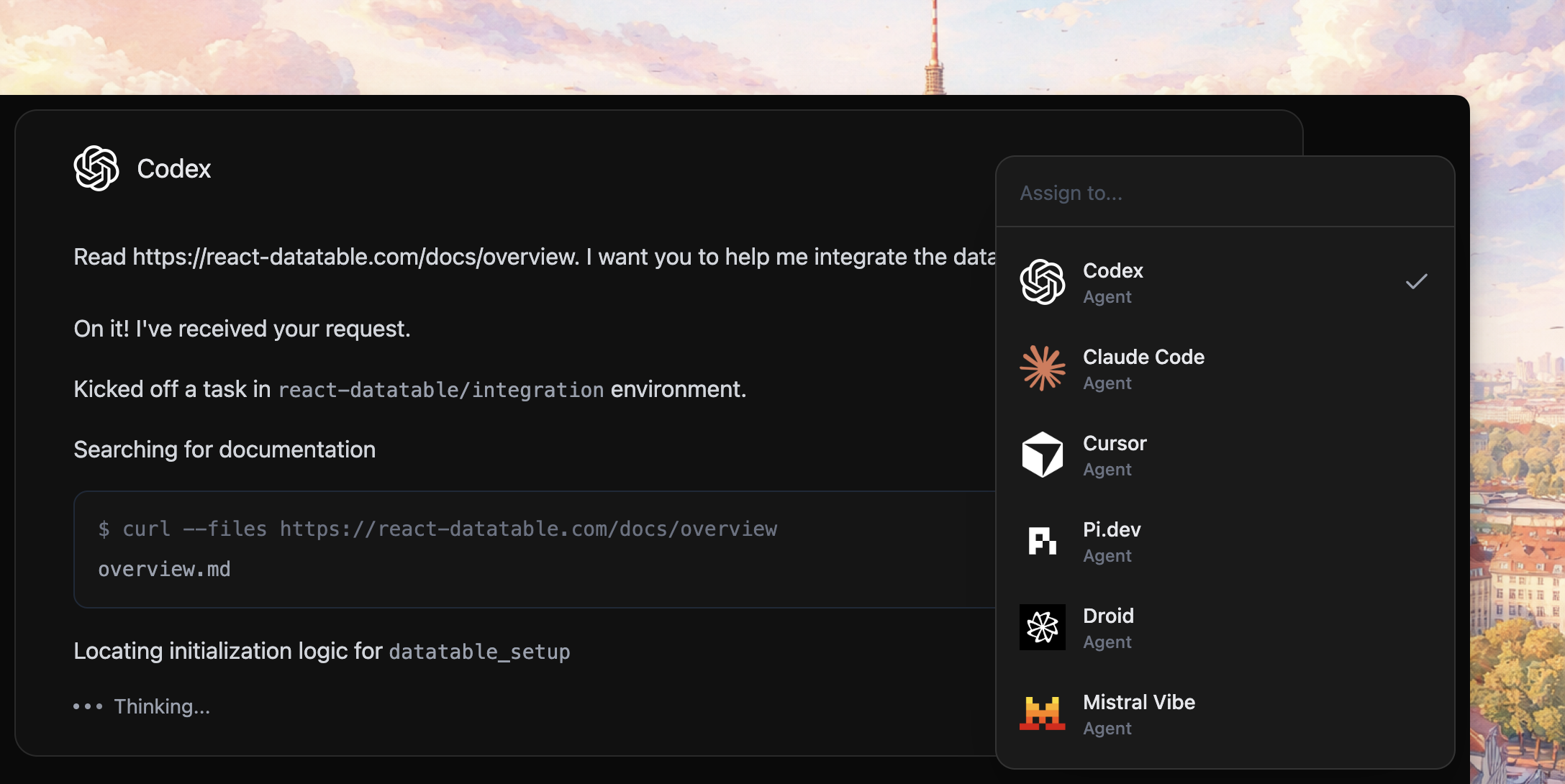
Give the agent the docs entrypoint
When you want an agent to install or modify the table, give it the documentation index first:
- llms.txt for a compact map of the docs
- llms-full.txt for the expanded docs corpus
That gives the agent the current install flow, component API, examples, and feature guides without requiring it to browse the site page by page.
Install with an agent
For a new app, keep the prompt direct:
Read https://react-datatable.com/docs/llms.txt, then install react-datatable into this app with:

npx @react-datatable/cli install --token <license-token>

After installation, render a CustomersTable with static rows, stable column IDs, and getRowId. Run the relevant typecheck or build before you finish.
For an existing table, name the product task instead of describing the table from scratch:
Read https://react-datatable.com/docs/llms-full.txt. In the customers table, add a Plan column with a text-list filter and keep the row height stable for virtualization. Use the existing column patterns and run the smallest relevant check.Good agent tasks
Agents are useful for focused integration work:
- installing the source into a framework app
- adding or refining columns
- creating custom cells
- wiring an online query function to your API route
- adding current-view persistence, URL sync, or saved views
- adapting toolbar, preview, row, or cell UI to your product
They are also useful after installation because the copied source is local. The agent can follow the implementation instead of guessing at hidden package behavior.
What to verify
Pick the smallest check that matches the change:
pnpm testpnpm run typecheckpnpm run build:local-basicpnpm run build:online-basicpnpm run test:copy-kitnpm testnpm run typechecknpm run build:local-basicnpm run build:online-basicnpm run test:copy-kityarn testyarn typecheckyarn build:local-basicyarn build:online-basicyarn test:copy-kitbun testbun run typecheckbun run build:local-basicbun run build:online-basicbun run test:copy-kitFor visual changes, also inspect the affected table in the browser. For behavior changes, ask the agent to name which table state or API contract changed.
Where to go next
Install the source from Installation, then render the first table in Getting started.