Add sorting
Use this guide when users need to change row order to answer real questions faster.
The goal is to make the right columns sortable, show the current ordering clearly, and then implement sorting correctly for the mode your table already uses.
The sorting UI can look similar in local and online mode. The important difference is where the order is actually computed.
Start with the columns where order changes decisions
Sorting is most useful on fields where users naturally ask for highest, newest, oldest, or alphabetic order:
- created date or updated date
- amount, revenue, score, or seat count
- priority, severity, or status rank
- company, owner, or project name
Do not make every column sortable by default just because the UI allows it. Decorative or ambiguous columns usually create more noise than value.
Enable sorting where it helps
Columns are sortable unless you disable them, so turn sorting off on fields that should not control row order.
const columns: DatatableColumn<Customer>[] = [
  {
    id: "company",
    accessorKey: "company",
    header: "Company",
  },
  {
    id: "revenue",
    accessorKey: "revenue",
    header: "Revenue",
  },
  {
    id: "notes",
    accessorKey: "notes",
    header: "Notes",
    enableSorting: false,
  },
]
This keeps sorting focused on fields with stable meaning.
Active sorting is shown in several places in the UI
The shipped UI already exposes sorting in a few places:
- the column headers show sort state for sorted columns
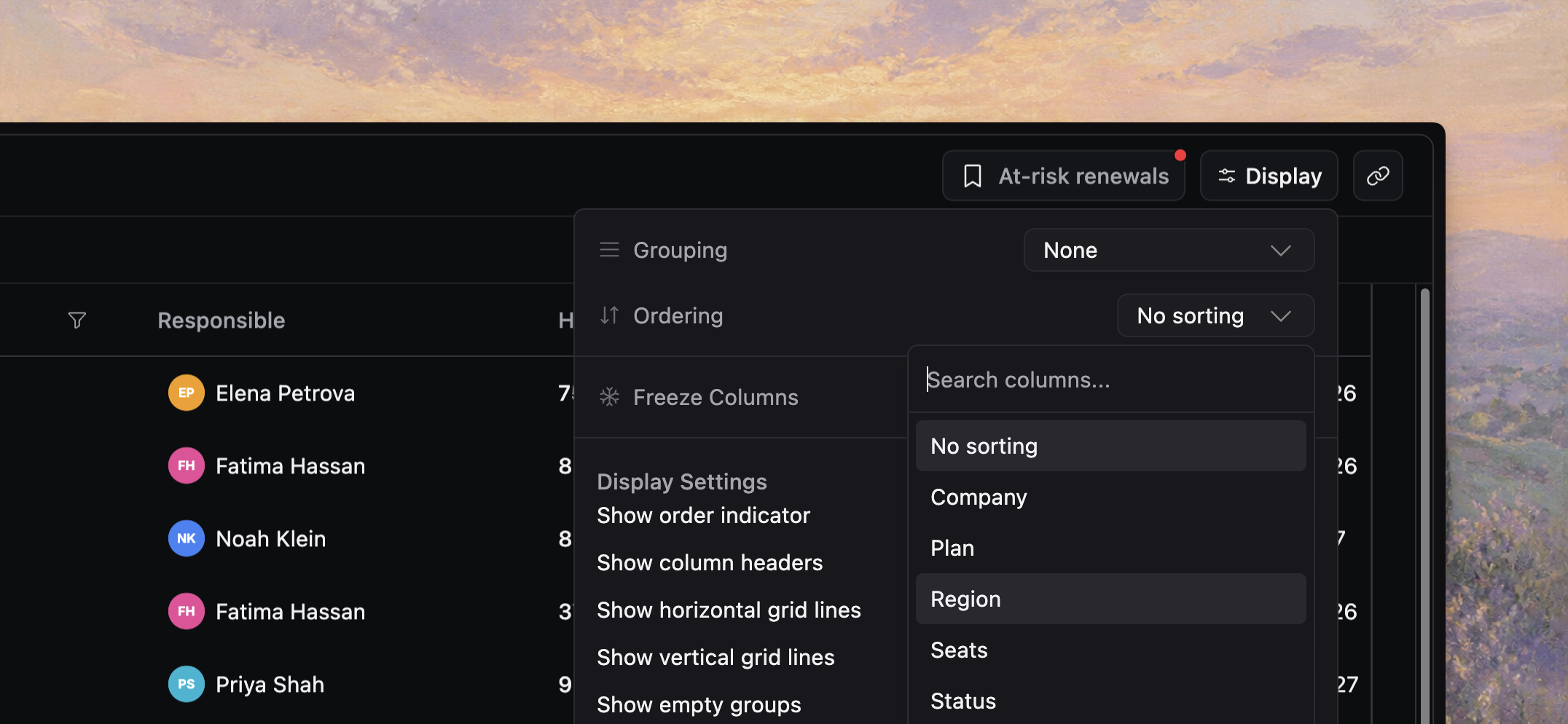
- the display-options ordering section lets users choose one visible primary sort
- the applied sorting chip shows the active sort stack when it is visible
Use the default surfaces unless you have a clear product reason to hide one.
The most important thing to explain is where users can see the current ordering and where they can adjust it when they need more than one sort.
[!NOTE] Screenshot placeholder: sorting chip plus display-options ordering controls in a realistic table with one primary sort and one added secondary sort.
Set a default order with initialState.sorting
Use table state, not column metadata, to define the first order users see.
<Datatable
  tableKey="customers"
  data={customers}
  columns={columns}
  getRowId={(row) => row.id}
  initialState={{
    sorting: [{ id: "company", desc: false }],
  }}
/>
This is the reliable way to start with a known ordering.
Show active sorting in the UI
If row order changes the meaning of the table, show that order clearly.
<Datatable
  tableKey="customers"
  toolbar={{
    appliedState: {
      showSorting: true,
      showFilters: true,
    },
  }}
/>
The applied-state bar renders a sorting chip that:
- shows the primary sorted column
- shows when multiple columns are active
- lets users clear sorting quickly
- opens a popover for deeper multi-sort management
If you want sorting to stay active but feel less noisy, you can hide the chip intentionally. That is usually best for fixed implementation-level defaults rather than user-controlled ranking.
In local mode, the browser sorts the loaded rows
In local mode, the table sorts the rows already in memory.
Built-in sorting already works out of the box for common column types:
text→ text sortnumber→ basic numeric sortdate→ datetime sort- everything else → TanStack
auto
You do not need to define a sortingFn for those common cases.
That works well when:
- the loaded dataset is bounded
- browser-side ordering is acceptable
- users do not need backend-authoritative ranking across unseen rows
Add sortingFn on the column definition only when local sorting needs custom business logic.
{
  id: "priority",
  accessorKey: "priority",
  header: "Priority",
  sortingFn: (left, right) => {
    const rank = { critical: 0, high: 1, medium: 2, low: 3 }
    return rank[left.getValue() as keyof typeof rank] - rank[right.getValue() as keyof typeof rank]
  },
}
For example, a priority column may need a business-specific rank instead of normal text ordering.
Use stable raw values whenever possible:
- numeric amounts instead of formatted currency strings
- ISO timestamps or
Datevalues instead of rendered labels - normalized status ranks instead of arbitrary display text
In online mode, your backend owns final order
In online mode, the table sends sorting state to your query function and the backend becomes responsible for final order.
You do not need to implement client-side sorting functions in this case.
async function fetchCustomers(input: OnlineQueryInput): Promise<OnlineQueryResponse<Customer>> {
  let query = db.select().from(customers)

  const sortableFields = {
    company: customers.company,
    revenue: customers.revenue,
    createdAt: customers.createdAt,
  } as const

  for (const sort of input.sorting) {
    const field = sortableFields[sort.id as keyof typeof sortableFields]
    if (!field) continue

    query = query.orderBy(sort.desc ? desc(field) : asc(field))
  }

  query = query.orderBy(asc(customers.id))

  return runQuery(query, input)
}
In this mode, your backend must decide:
- which column IDs map to safe sortable fields
- how multi-sort priority is applied
- how grouped queries preserve consistent ordering
- how pagination avoids duplicate or skipped rows
Always end with a stable tie-breaker such as id. Without that, equal primary values can move between pages or viewport windows and create confusing duplicates or gaps.
Verify sorting before you move on
Before you continue, confirm that:
- only meaningful columns are sortable
- default order is set through
initialState.sorting - active sorting is visible when users need it
- local custom
sortingFnlogic matches the displayed meaning of the data - online queries apply
input.sortingthrough a safe field map and finish with a stable tie-breaker