Add copy links
Use copy links when people occasionally need to share the current search, filters, sorting, or grouping state.
This feature creates deliberate, on-demand sharing links for the current table state.
Copy links vs saved views vs URL sync
The simple version:
- Copy links load the table from URL params when someone opens the link you copied.
- URL sync keeps writing table state back into the URL while the user works.
- Saved views store a named preset instead of relying on a long URL.
Use copy links when users need to:
- paste the current table state into chat or a ticket
- hand someone a one-off filtered view
- share the current state without filling browser history with every change
Use saved views instead when the shared state should become a durable named preset.
Use continuous URL sync only when the URL itself is part of the product surface and should keep changing as the table changes.
Turn on the toolbar control
Copy links are exposed through the toolbar.
<Datatable
  tableKey="customers"
  data={rows}
  columns={columns}
  getRowId={(row) => row.id}
  toolbar={{
    quickSearch: true,
    filterButton: true,
    copyLink: true,
  }}
/>
The built-in CopyLinkButton always serializes the current shareable table state when the user clicks it.
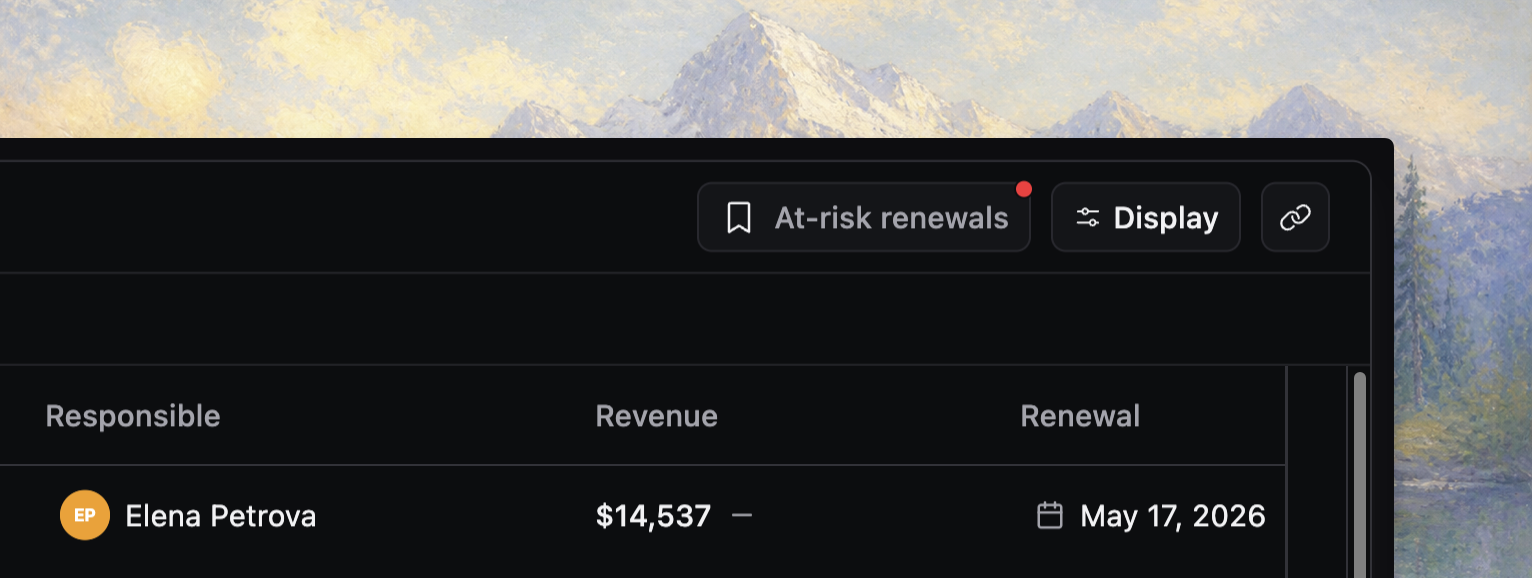
[!NOTE] Screenshot placeholder: toolbar with the copy-link button visible next to search and filters, plus a realistic filtered table state that is worth sharing.
What the copied link includes
Copy link uses the same URL-state serialization layer as URL sync.
That means the copied URL can include:
- global search (
q) - column filters (
f.columnId) - sorting (
s) - filter mode (
fm) - grouping (
g)
It serializes shareable query state instead of personal layout preferences like column widths, sticky columns, visibility, or the active saved view ID.
Use copy links without live URL sync
The copy-link button calls serializeToFullUrl() directly from the current store state.
That means users can copy a valid shareable link even when urlSync.enabled is false.
For many product tables, that is the right default:
persistStateremembers one person's working setup automaticallycopyLinkshares the current query state on demand- the address bar stays stable during normal interaction
Accept URL params on load
A copied link only helps if the destination table accepts URL params on load.
<Datatable
  tableKey="customers"
  data={rows}
  columns={columns}
  getRowId={(row) => row.id}
  urlSync={{
    enabled: false,
    acceptUrlParams: true,
  }}
  toolbar={{ copyLink: true }}
/>
With enabled: false and acceptUrlParams: true, the table reads the shared state once and then clears those datatable params from the URL.
That is a good fit when links should open a shared state snapshot but the page should not keep rewriting the address bar afterward.
[!NOTE] Screenshot placeholder: a before-and-after share flow showing a copied filtered URL opening the same table state for a recipient while the address bar stays clean after initialization.
Persistence and defaults
URL state still has the highest initialization priority.
That means a copied link can override:
initialState- workspace default views
- user default views
- remembered current-view persistence
That is what makes a copied link trustworthy: the recipient sees the shared query state first, even if they normally have their own defaults.
Long links
Copied links store table state directly in the URL. Use saved views when the table state is too large for a practical link, especially when users stack many filters or complex filter payloads.
Verify the share flow
Before you ship copy links, confirm that:
- the toolbar button is visible where users expect it
- the table accepts URL params on load when a copied link is opened
- copied state overrides remembered state during initialization
- the page behaves correctly after load when continuous URL sync is disabled
- long or complex states fall back to a saved-view workflow in product guidance
Keep the product language clear
Readers should understand the difference between these three tools:
- Current-view persistence remembers my last state automatically
- Saved views create named reusable presets
- Copy links share the current query state right now
That distinction prevents teams from overloading one feature with another feature's job.