Add grouping
Use this guide when users need to scan the table by category, owner, status, date bucket, or another field that makes sections easier to reason about than one long list.
The grouping UI can look similar in both modes. The important difference is who is responsible for producing the grouped result.
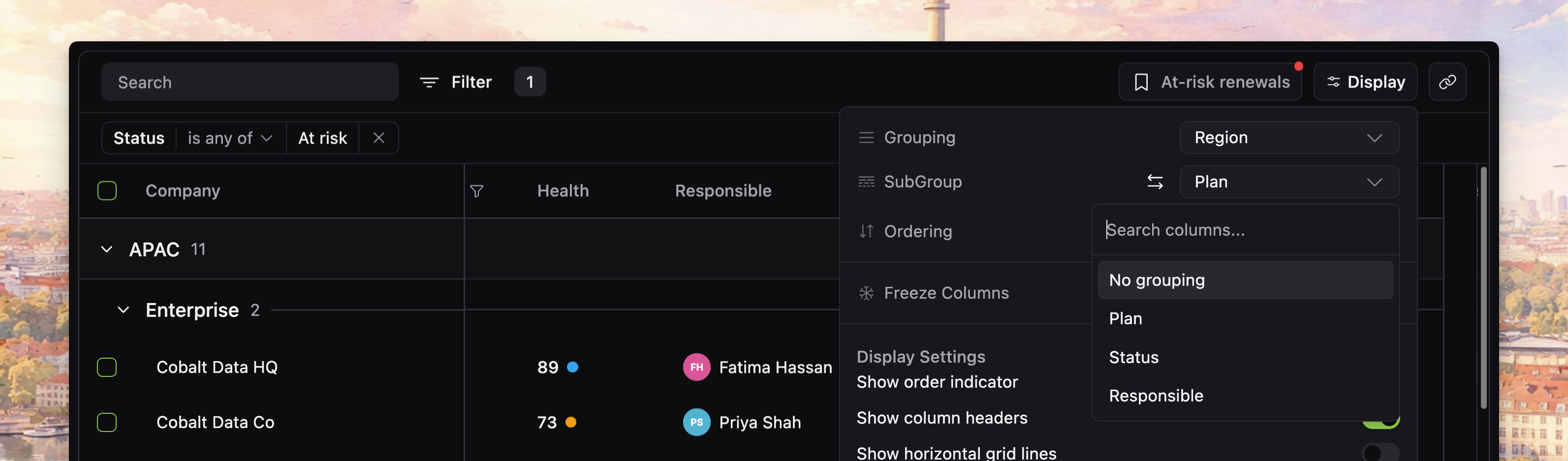
Choose grouping columns
Group by fields with a small, recognizable set of values, such as status, owner, priority, plan, project, or month/year date buckets.
Avoid high-cardinality fields such as freeform names, titles, IDs, or overly fine timestamps.
Those usually create too many small groups, especially on large datasets.
Mark groupable columns in the column definition
Columns are only useful for grouping when you declare that intent clearly.
const columns: DatatableColumn<Issue>[] = [
  {
    id: "status",
    accessorKey: "status",
    header: "Status",
    enableGrouping: true,
  },
  {
    id: "owner",
    accessorKey: "owner",
    header: "Owner",
    enableGrouping: true,
  },
]
This gives the display-options grouping controls a real set of columns to offer.
[!NOTE] Screenshot placeholder: grouped table with group and subgroup headers visible in a realistic issue or customer table.
Use grouping specs when raw values are not the grouping shape users need
Some fields should not group directly by their raw stored value.
Use groupingSpec when you need a better grouping surface, such as:
- month or year buckets for timestamps
- revenue bands
- seat-count ranges
- normalized labels for raw enum values
{
  id: "createdAt",
  accessorKey: "createdAt",
  header: "Created",
  enableGrouping: true,
  groupingSpec: {
    variants: {
      month: { kind: "date_trunc", granularity: "month" },
      year: { kind: "date_trunc", granularity: "year" },
    },
    defaultVariant: "month",
  },
}
That keeps the grouping UI aligned with how people actually talk about the data.
Start with one grouping level, then add a subgroup only when it truly helps
The current grouping UI supports:
- one primary grouping column
- one optional secondary grouping column
- swapping the two levels when both are active
That means two levels are possible, but you should still earn the second one.
A good pattern is:
- first group by the strongest top-level category
- add a subgroup only when it answers a second common question
Examples:
- status, then owner
- project, then priority
- month, then plan
If users are already struggling to scan the first grouping level, a subgroup will usually make the table harder, not clearer.
[!NOTE] Screenshot placeholder: two-level grouping example such as status then owner, with subgroup headers and row counts visible so the hierarchy feels tangible.
Expose grouping from display options
Grouping is currently managed from the display-options popover.
That is a good default because grouping belongs with other layout-shaping controls such as ordering, visibility, and display settings.
Keep the responsibility split clear:
- grouping chooses row sections
- filtering narrows the dataset
- sorting controls row order inside those groups
When those jobs stay separate, users can predict what each control will do.
In local mode, the browser groups the loaded rows
In local mode, the browser can group the currently loaded rows using your column definitions and grouping specs.
This works well when:
- the dataset is already loaded
- group counts only need to reflect loaded rows
- client-side grouping performance is acceptable
In online mode, your backend owns grouped row shaping
In online mode, your backend must return rows in final render order, including group-header rows when grouping is active.
For the exact response shape, see OnlineQueryResponse in the Online API reference.
For a fuller backend walkthrough, see Server query endpoint, Server query planning, and Server query execution.
async function query(input: OnlineQueryInput): Promise<OnlineQueryResponse<Issue>> {
  // input.grouping?.columns drives backend grouping
  // rows should include group-header and data entries in final order
}
You should also list which columns the backend can safely group.
<Datatable
  tableKey="customers"
  columns={columns}
  getRowId={(row) => row.id}
  online={{
    mode: "pagination",
    queryKey: ["issues"],
    query,
    supportedGroupingColumns: ["status", "owner", "priority"],
  }}
/>
That prevents saved views or shared URLs from requesting unsupported grouping state.
Decide whether empty groups belong in the product
Grouping can optionally keep empty groups visible when that matters to the workflow.
This is most useful when users care about the full domain, not only matching rows. For example:
- all status lanes in an ops workflow
- all plan tiers in an account view
- all queue buckets in triage
If empty groups would mostly create blank noise, hide them.
[!NOTE] Screenshot placeholder: grouping controls in display options with
show empty groupsvisible, paired with a table state where empty groups are either shown deliberately or hidden for comparison.
Pair grouping with the right neighboring features
Grouping gets stronger when the surrounding features support it well:
- sorting for stable order inside each group
- display options for showing or hiding empty groups
- persistence or saved views so users keep their preferred breakdown
- virtualization tuning if grouped tables become tall and dense
Grouping gets weaker when users have to rebuild the same grouped layout every visit.
Verify grouping before you move on
Before you continue, confirm that:
- only genuinely useful columns are groupable
- grouping labels match how users describe the data
- a subgroup is only exposed when it improves scanning
- online tables return grouped rows through a documented backend contract
- unsupported grouping columns are filtered out in online mode
- empty-group behavior matches the product workflow