Add column filters
Use this guide when users need more precision than one global search box can provide.
The goal is to make the right columns filterable, pick filter types that match the data, and keep the built-in filter UI predictable for both users and app developers.
The filter UI can look similar in local and online mode. The important difference is where the filter payloads are actually applied.
Start with the columns users actually filter by
Column filters work best for fields that answer a clear question:
- status
- owner
- priority
- plan
- renewal date
- seat count or revenue band
Do not add filters to every column by default. A table with too many low-value filters becomes harder to scan and harder to trust.
Mark each filterable column with a filterType
A column needs a filterType before it can participate in the built-in filter UI.
const columns: DatatableColumn<Customer>[] = [
  {
    id: "company",
    accessorKey: "company",
    header: "Company",
    filterType: "text",
  },
  {
    id: "status",
    accessorKey: "status",
    header: "Status",
    filterType: "text-list",
    filterOptions: {
      options: [
        { value: "active", label: "Active" },
        { value: "trial", label: "Trial" },
        { value: "paused", label: "Paused" },
      ],
    },
  },
  {
    id: "renewalDate",
    accessorKey: "renewalDate",
    header: "Renewal",
    filterType: "date",
  },
]
If a column should never be filterable, omit filterType or set enableFiltering: false.
Turn on the toolbar filter entry point
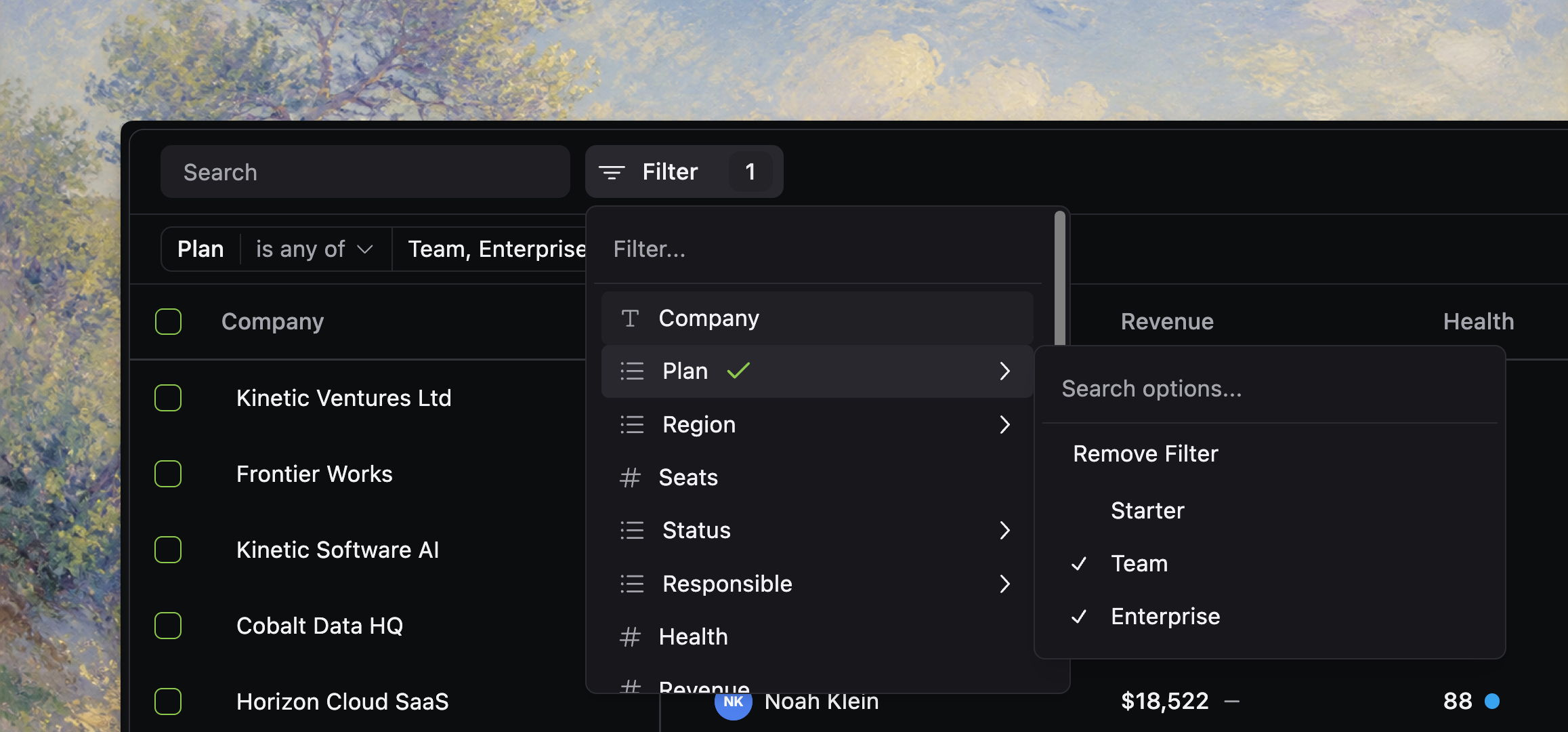
Enable the filter button so users can open the built-in filter picker.
<Datatable
  tableKey="customers"
  data={customers}
  columns={columns}
  getRowId={(row) => row.id}
  toolbar={{
    filterButton: true,
    appliedState: {
      showFilters: true,
    },
  }}
/>
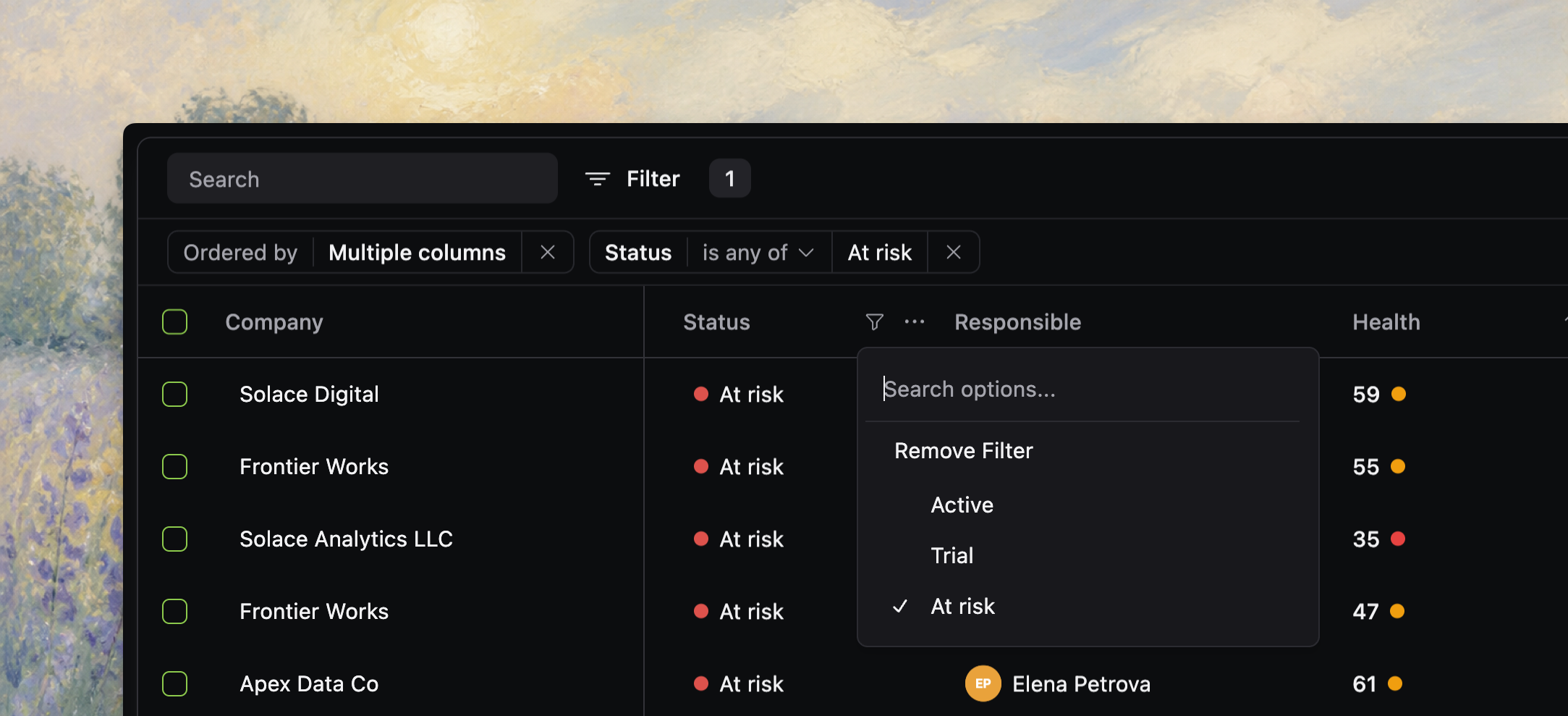
The current toolbar shows active filter chips when appliedState.showFilters is enabled.
Pick the right filter type for each field
Use the built-in filter types according to the kind of question users ask.
Use text for open-ended string matching
Choose text when users search a field by partial or exact text.
{
  id: "company",
  accessorKey: "company",
  header: "Company",
  filterType: "text",
}
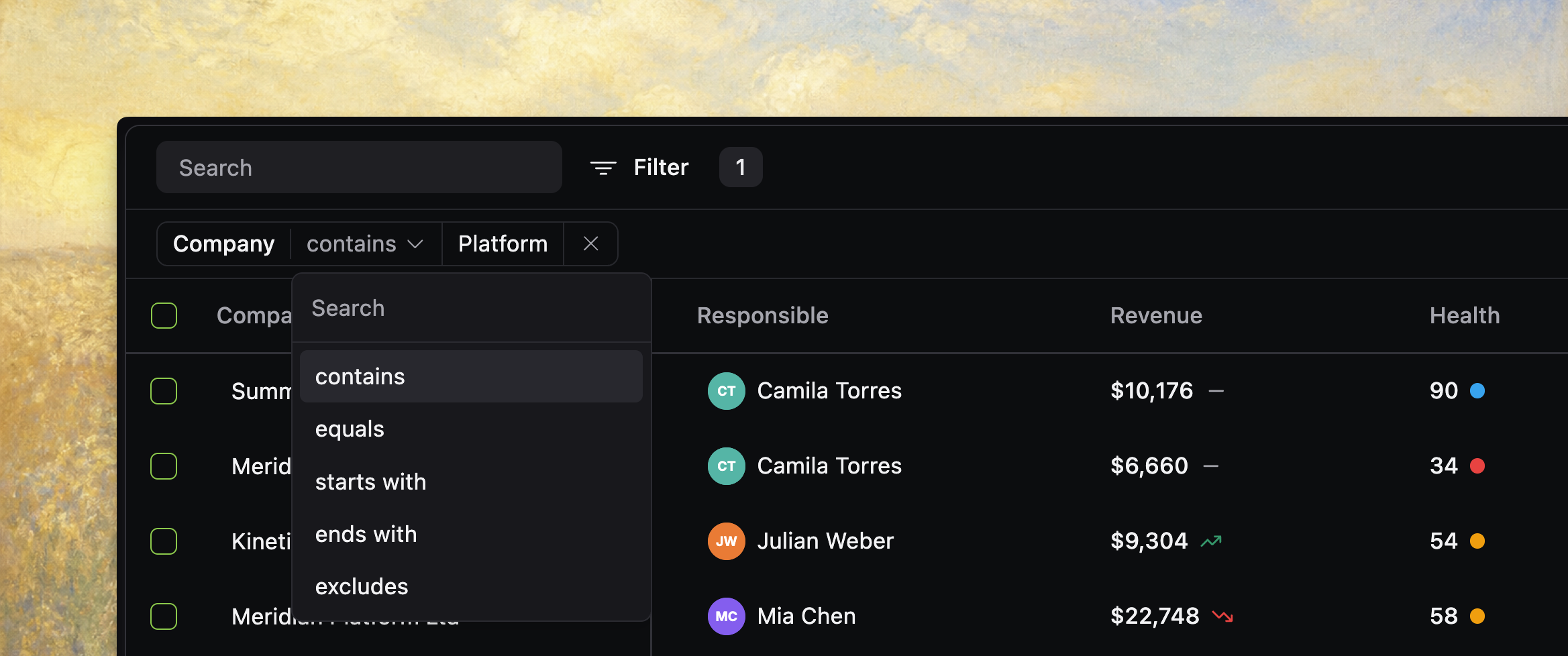
The current docs and source support text-filter modes such as contains, equals, starts with, ends with, and excludes.
Use text-list for finite labels
Choose text-list when the field has a bounded set of meaningful values.
{
  id: "status",
  accessorKey: "status",
  header: "Status",
  filterType: "text-list",
  filterOptions: {
    options: [
      { value: "active", label: "Active" },
      { value: "trial", label: "Trial" },
      { value: "paused", label: "Paused" },
    ],
  },
}
This is usually the best choice for status, priority, plan, stage, or other user-facing facets.
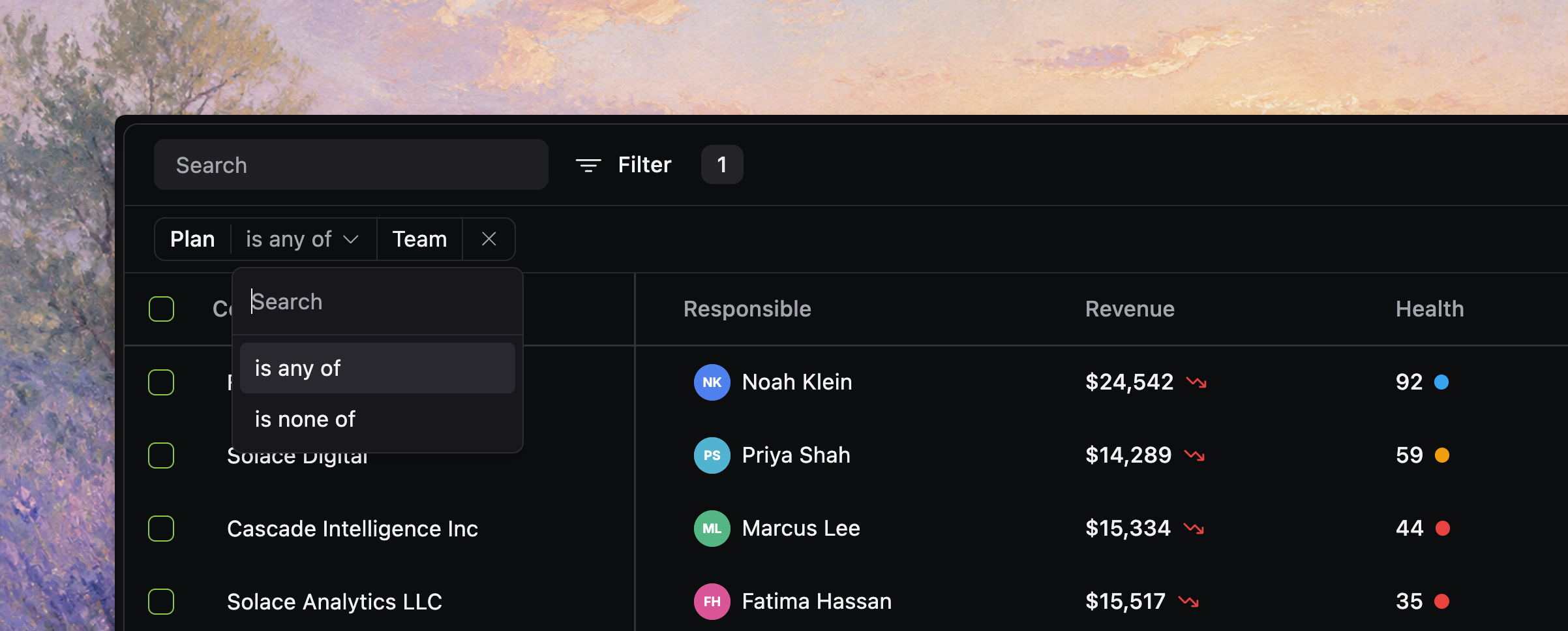
You can also customize how option-list filters render without changing the filter payload. This is useful when an option needs a visual cue, such as an owner avatar, status dot, or boolean badge.
{
  id: "owner",
  header: "Owner",
  accessorFn: (row) => row.owner.name,
  filterType: "text-list",
  filterOptions: {
    options: owners.map((owner) => ({ value: owner.name, label: owner.name })),
    renderOption: (option) => {
      const owner = owners.find((item) => item.name === option.value)

      return (
        <>
          {owner ? <OwnerAvatar owner={owner} /> : null}
          <span className="truncate">{option.label}</span>
        </>
      )
    },
  },
}
renderOption is presentation-only. The active filter still stores and applies the selected value.
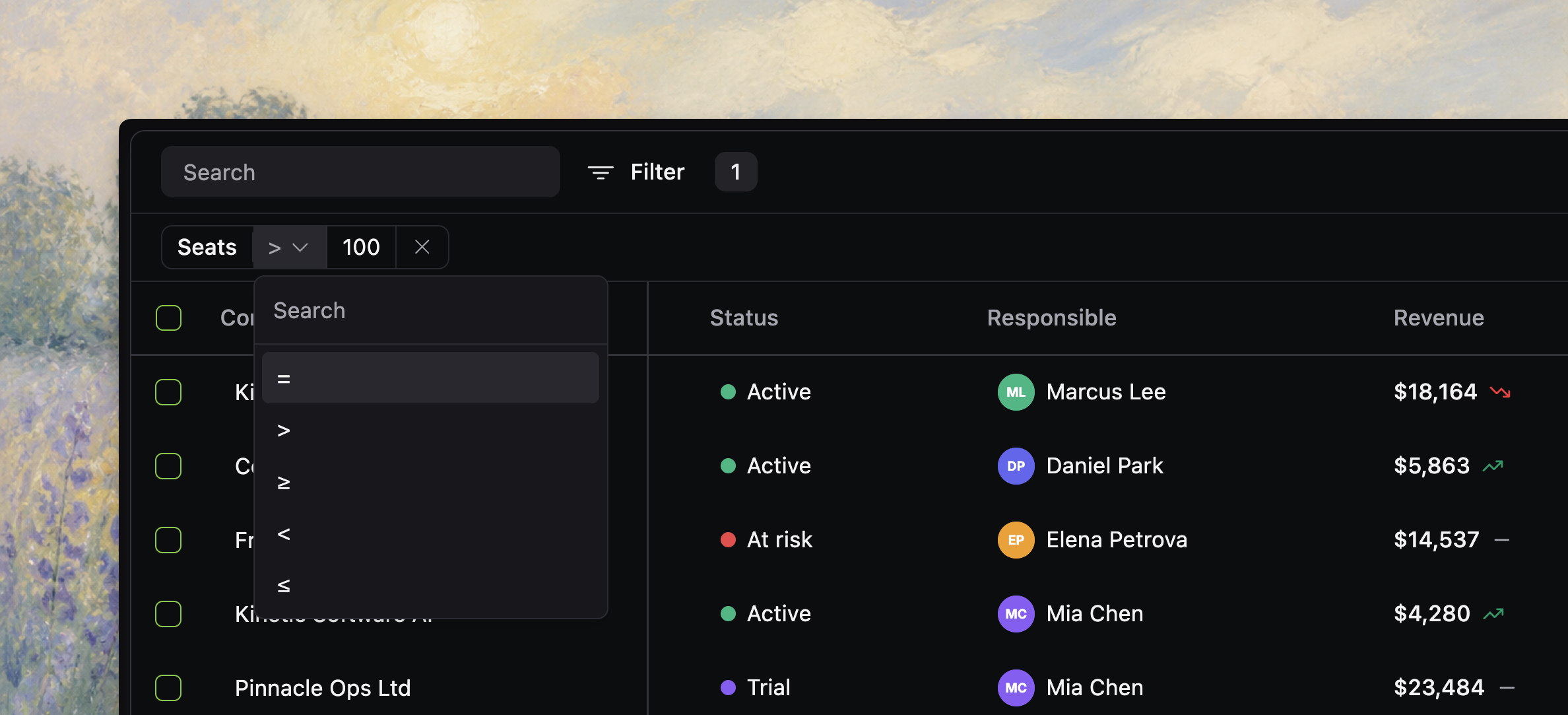
Use number for measurable values
Choose number for counts, prices, scores, durations, or quantities.
{
  id: "seats",
  accessorKey: "seats",
  header: "Seats",
  filterType: "number",
}
Use date for date-oriented questions
Choose date when users think in before/after/range language.
{
  id: "renewalDate",
  accessorKey: "renewalDate",
  header: "Renewal",
  filterType: "date",
}
Normalize date values before they reach the table so the UI and backend agree on what each filter means.
Use boolean for yes/no fields
Choose boolean when the column answers a binary question such as active vs inactive, paid vs unpaid, or internal vs external.
{
  id: "isActive",
  accessorKey: "isActive",
  header: "Active",
  filterType: "boolean",
}
By default the built-in editor shows True and False. You can override those labels with filterOptions.options.
{
  id: "isInternal",
  accessorKey: "isInternal",
  header: "Audience",
  filterType: "boolean",
  filterOptions: {
    options: [
      { value: true, label: "Internal" },
      { value: false, label: "External" },
    ],
    renderOption: (option) => (
      <>
        <span aria-hidden="true" className={option.value ? "bg-green-500 size-2 rounded-full" : "bg-gray-400 size-2 rounded-full"} />
        <span>{option.label}</span>
      </>
    ),
  },
}
Use id-list for related entities
Choose id-list when rows point at related records such as assignees, accounts, projects, or workspaces.
const assigneeOptions = useMemo(
  () =>
    users.map((user) => ({
      value: user.id,
      label: user.name,
    })),
  [users]
)

{
  id: "assigneeIds",
  accessorKey: "assigneeIds",
  header: "Assignee",
  filterType: "id-list",
  filterOptions: {
    options: assigneeOptions,
    isLoading: usersQuery.isLoading,
    emptyText: "No assignees available",
    renderOption: (option) => {
      const user = users.find((item) => item.id === option.value)

      return (
        <>
          {user ? <UserAvatar user={user} /> : null}
          <span>{option.label}</span>
        </>
      )
    },
  },
}
Keep option loading in your app, not inside the table primitive. A common pattern is:
- fetch related entities with your own query layer
- map them to
{ value, label }[] - pass the resolved options and loading state into
filterOptions
That keeps fetching, caching, and invalidation under your control.
renderOption is supported by text-list, id-list, and boolean because all three use the shared option-list editor. It is not used by freeform text, numeric, or date filters.
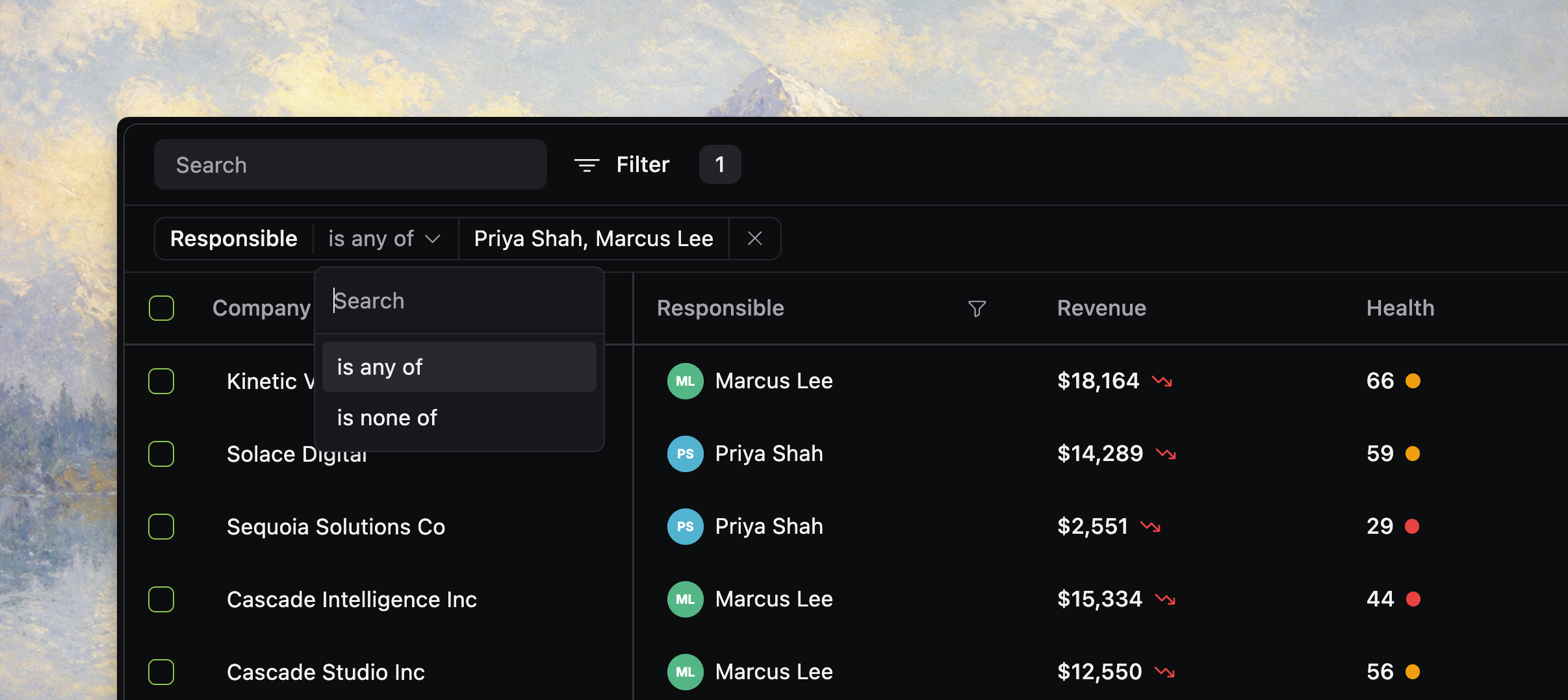
Know what the built-in filter UI can do
These filter types are available in the built-in picker and chip UI:
texttext-listnumberdatebooleanid-list
custom is still an extension point. It gives you a typed place to store filter payloads, but you supply your own editor, chip presentation, and query behavior.
The built-in picker behaves differently depending on filter type:
textandnumberopen through the editor modal flowtext-listanddateuse inline submenu-style editors from the filter pickerbooleanandid-listuse the same built-in option-list editing pattern, with chips that reopen the selector for quick edits- only implemented, enabled filter types appear in the filter list
In practice there are two families of built-in filters:
- freeform filters:
text,number,date - list-shaped filters:
text-list,boolean,id-list
That split is useful when you design columns. If the user is choosing from named options, a list-shaped filter usually produces the cleanest UI.
Show active filters in the UI
If users can filter the table, they should be able to see and remove active filters easily.
toolbar={{
  filterButton: true,
  appliedState: {
    showFilters: true,
    showSorting: true,
  },
}}
The applied-state bar renders filter chips below the toolbar and lets users remove individual filters without reopening the picker.
Use AND and OR intentionally
The table supports a cross-column filter mode.
ANDmeans a row must satisfy every active column filterORmeans a row can satisfy any active column filter
The toolbar shows the toggle when users have multiple column filters, or when they combine global search with at least one column filter.
Use AND for narrow operational queries. Use OR for exploratory scanning across several related signals.
In local mode, filters run against loaded rows
In local mode, filters run against the rows already loaded in memory.
That works well when:
- the dataset is bounded
- browser-side filtering is acceptable
- backend-authoritative totals or facets are not required
text-list and id-list both support scalar cells and array-valued cells:
- if the cell holds one value, the filter compares that value directly
- if the cell holds an array, the filter matches when any selected value overlaps the row values
That makes them a good fit for tags, many-to-many relationships, and multi-assignee style columns.
In online mode, your backend applies the filter payloads
In online mode, the table sends filter payloads to your query function and your backend becomes responsible for the filtered result.
async function fetchCustomers(input: OnlineQueryInput): Promise<OnlineQueryResponse<Customer>> {
  let query = db.select().from(customers)

  for (const filter of input.filters) {
    if (filter.id === "status" && filter.type === "text-list") {
      query = query.where(inArray(customers.status, filter.payload.values))
    }

    if (filter.id === "company" && filter.type === "text") {
      for (const condition of filter.payload.conditions) {
        if (condition.mode === "contains") {
          query = query.where(ilike(customers.company, `%${condition.value}%`))
        }
      }
    }

    if (filter.id === "arr" && filter.type === "number") {
      for (const condition of filter.payload.conditions) {
        if (condition.mode === "gte") {
          query = query.where(gte(customers.arr, condition.value))
        }

        if (condition.mode === "lte") {
          query = query.where(lte(customers.arr, condition.value))
        }
      }
    }

    if (filter.id === "isActive" && filter.type === "boolean") {
      query = query.where(eq(customers.isActive, filter.payload.value))
    }

    if (filter.id === "assigneeIds" && filter.type === "id-list") {
      query = query.where(inArray(customerAssignees.assigneeId, filter.payload.ids))
    }
  }

  return runQuery(query, input)
}
If you offer list-shaped filters in online mode, keep the option source authoritative too. That usually means your app fetches the option list from the same backend or domain source that defines the data.
Disable low-value filters explicitly
If a column has a filterType in a shared definition but should not be filterable in one table, disable it at the column level.
{
  id: "rawPayload",
  accessorKey: "rawPayload",
  header: "Payload",
  filterType: "text",
  enableFiltering: false,
}
This keeps the filter picker focused on user-facing fields.
Verify column filters before you move on
Before you continue, confirm that:
- each filterable column answers a real user question
- list-shaped filters use stable values and clear labels
id-listoption loading and caching stay in your app layer- only built-in filter types are presented as turnkey UI
- applied filter chips are visible when users need them
ANDversusORbehavior matches the intended workflow- online queries apply
input.filtersand return consistent facets when needed